Guides → WiFi LED Temperature & Humidity Display
WiFi LED Temperature & Humidity Display
DataPix supports an optional on-board DHT22 sensor for local temperature and humidity — no Wi-Fi, no API, no cloud, just a direct hardware reading.
What you need
- A DataPix with a DHT22 sensor fitted (optional hardware — check your build).
- Nothing else. This preset needs no API key and no network connection.
Step by step
-
Open the interface
From a browser on the same network, open the device's IP address shown on the panel.

-
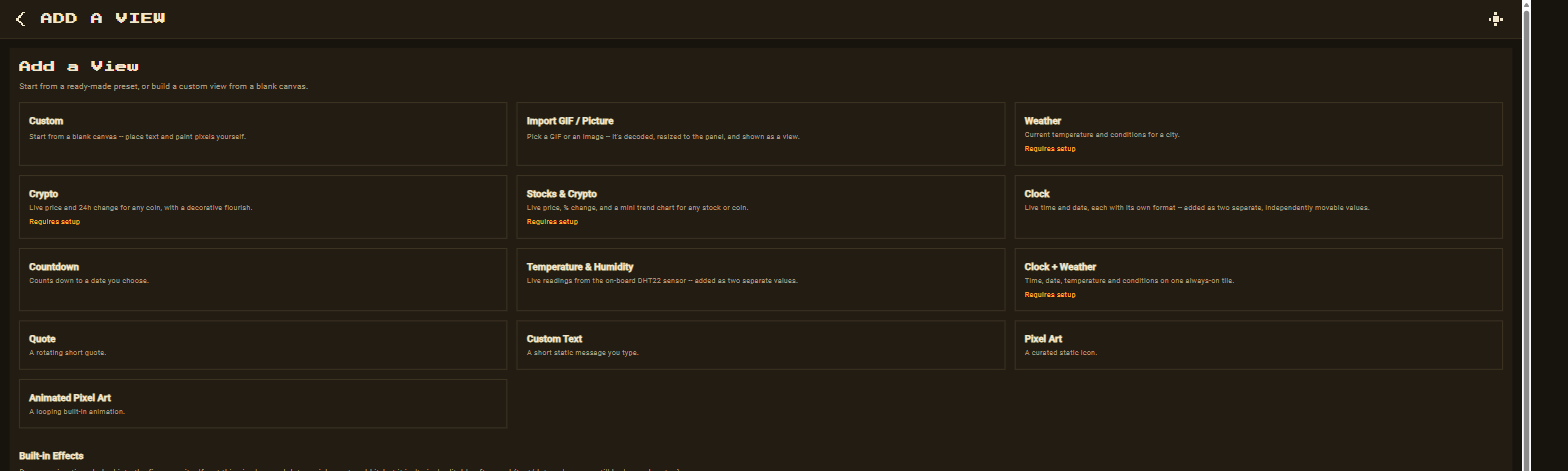
New view → Temperature & Humidity
Go to Views → New view and pick the Temperature & Humidity preset — it's added instantly, with no setup form.
-
Customize and save
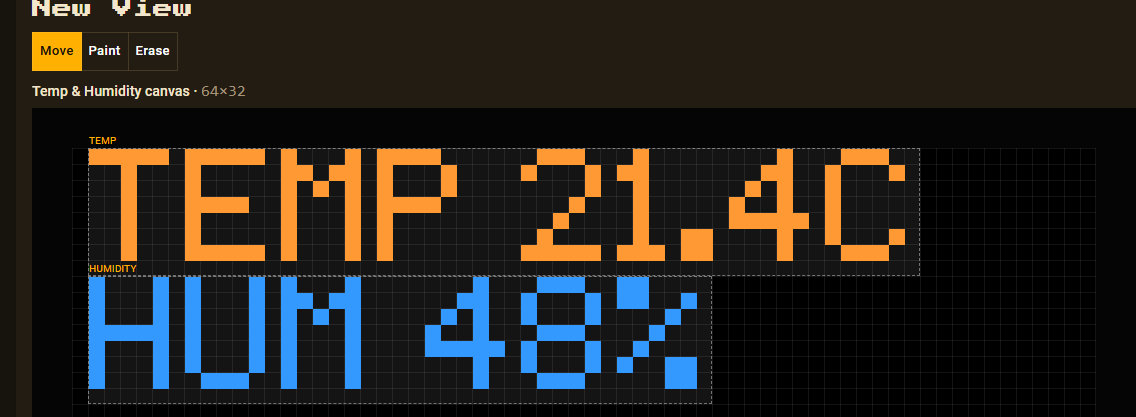
Temperature and humidity are added as two separate, independently movable elements — reposition and recolour either one, then Save.
If a
$sensor value stays on --, check the DHT22's
wiring and its data pin against your build's DHT_PIN — see
Troubleshooting. If your build has no sensor
fitted, remove the element rather than leaving it blank.