Guides → WiFi LED Countdown Timer
WiFi LED Countdown Timer
Turn DataPix into a countdown to any date — a launch, a wedding, a deadline, New Year's. No API key, no code.
What you need
- A DataPix, powered on and joined to your Wi-Fi (see Setup).
- A time zone set in Network Time so the countdown lands on the right moment.
Step by step
-
Open the interface
From a browser on the same network, open the device's IP address shown on the panel.

-
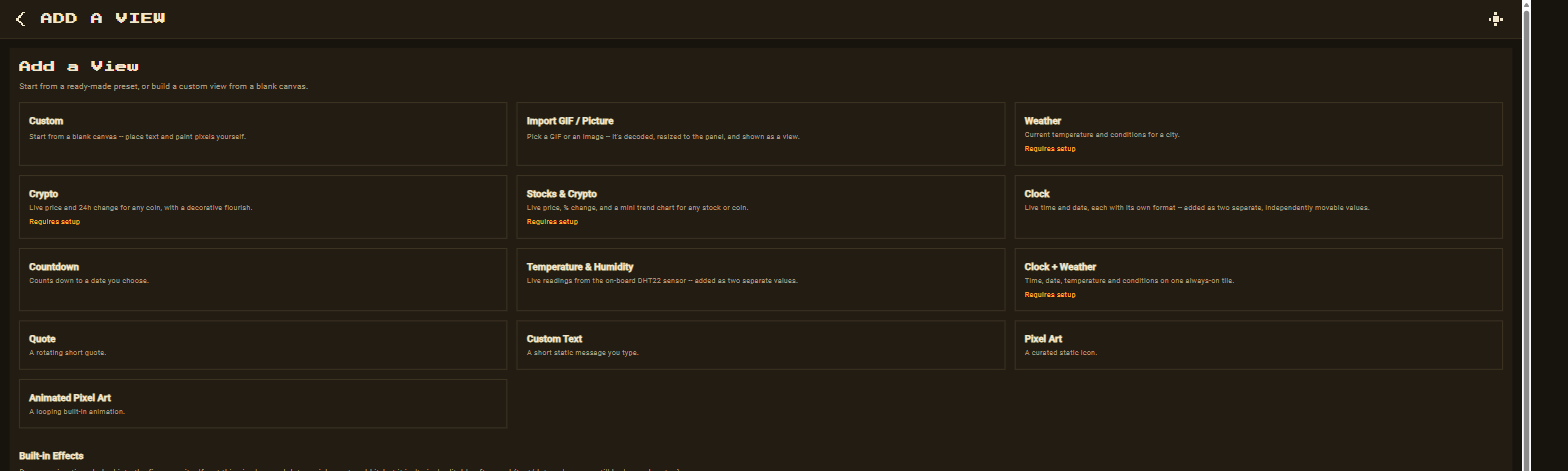
New view → Countdown
Go to Views → New view and pick the Countdown preset.
-
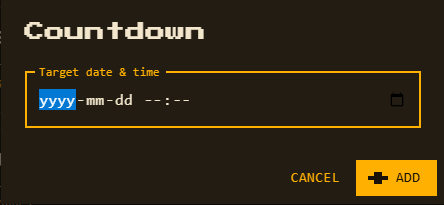
Pick a target date and time
Use the date-and-time picker to choose exactly when the countdown reaches zero.
-
Customize and save
The countdown is added as a single element with a humanized format like
5d 3h 42m— reposition, recolour, or change the format, then Save.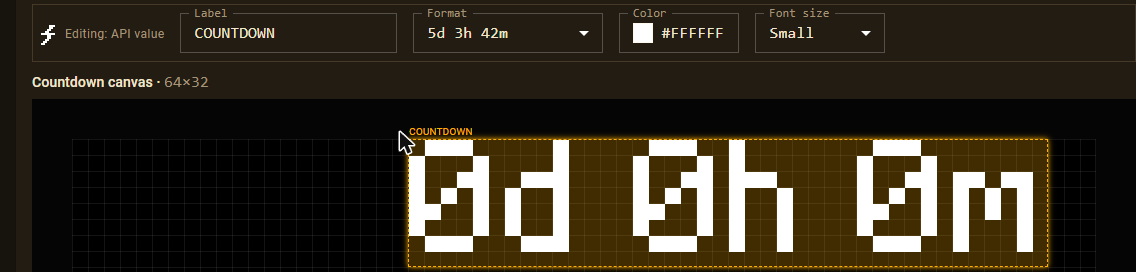
See Views for every built-in preset, or
wire up any custom JSON API for
something a preset doesn't cover.